
Manage leads and contacts
Follow inquiries, appraisal requests and showings from first contact to the next action.
Step-by-step instructions
- 01
Open the Leads menu
Sign in to the dashboard and expand Leads. Inquiries come from listing and contact questions; Appraisals come from home-value requests; Showings come from viewing requests.
- 02
Review a request
Open the relevant list, search or sort it, then open a row. Read the message, property details and contact information before responding outside the dashboard.
- 03
Find the linked Contact
Open CRM → Contacts to see the person’s record. Capture forms link their requests to a contact, so the same person can be followed across inquiries, appraisals and showings. You can also create a Contact manually.
- 04
Record the next step
Update the contact stage and add relevant notes or follow-up tasks. Check the contact’s email consent before using that address for a campaign.
Screenshots and callouts
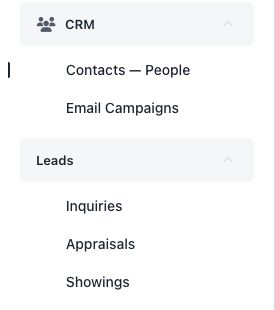 1 · Lead types
 2 · Find a contact
Helpful notes
- An agent sees their own leads and contacts; company access follows the account’s company scope.