
Manage Featured Properties
Promote an MLS property or create a custom listing, with images and videos.
Step-by-step instructions
- 01
Open Featured Listings
In the dashboard, open Homepage → Featured Listings, then select Create New.
- 02
Choose the source
Select Import from MLS for a listing already in the database, or Custom listing for a property you enter yourself.
- 03
Fill property details
For MLS, enter the exact MLS key and click Load listing details, then verify the address, price and status. For Custom, enter the address, city, price and other details yourself, plus an optional destination URL.
- 04
Add images and videos
Add a featured image for a custom listing. Use Images and videos to upload and order the gallery; the first gallery item serves as the featured cover. Only use media you are allowed to publish.
- 05
Choose a category and order
Select a Featured Collection category in the sidebar. Set Sort Order if you want to control placement; lower numbers appear first within that category.
- 06
Save and check your site
Click Save, then open your website’s Featured page. Confirm the property, cover image and destination link work as expected. MLS display also depends on the tenant’s listing permissions.
Screenshots and callouts
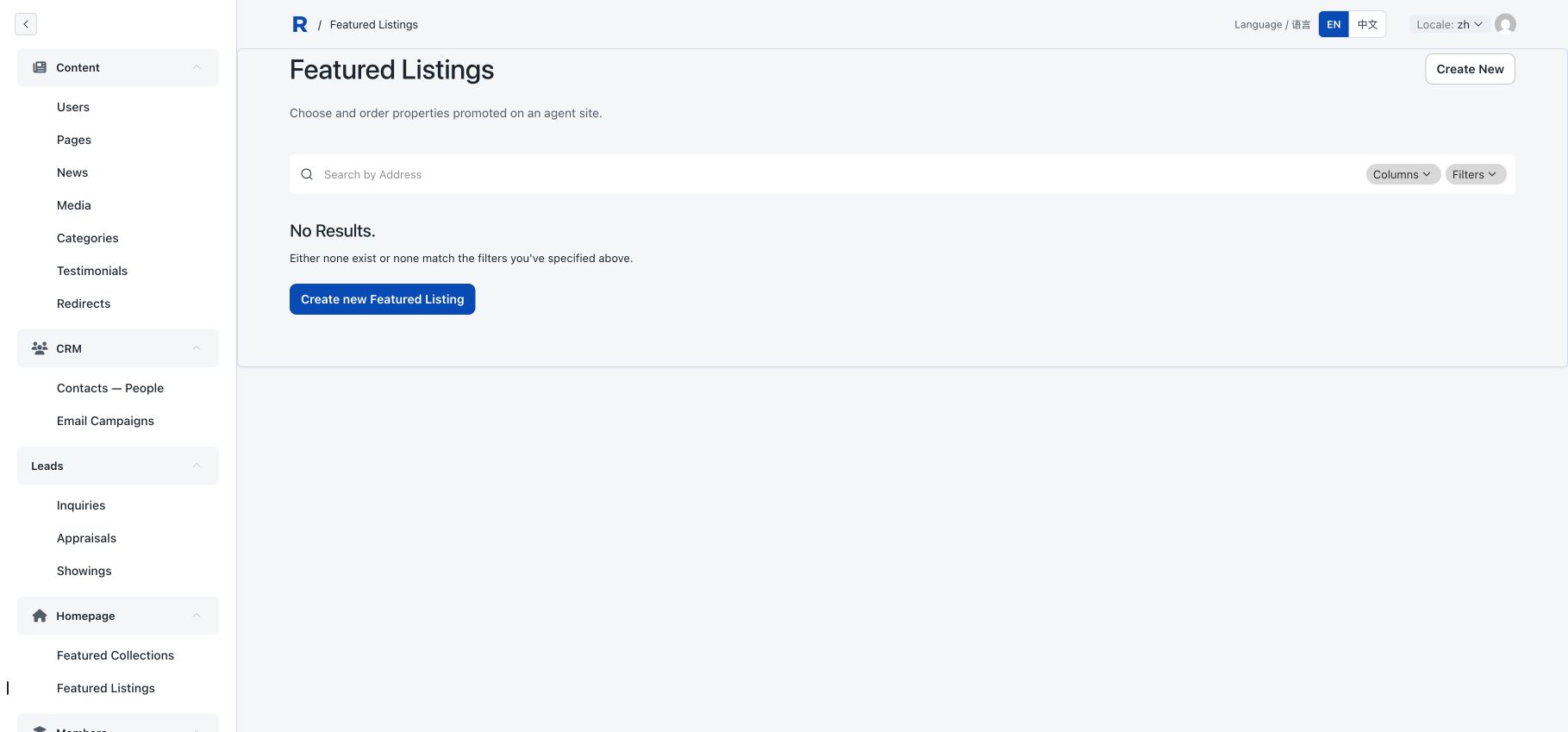 1 · Featured Listings2 · Create New
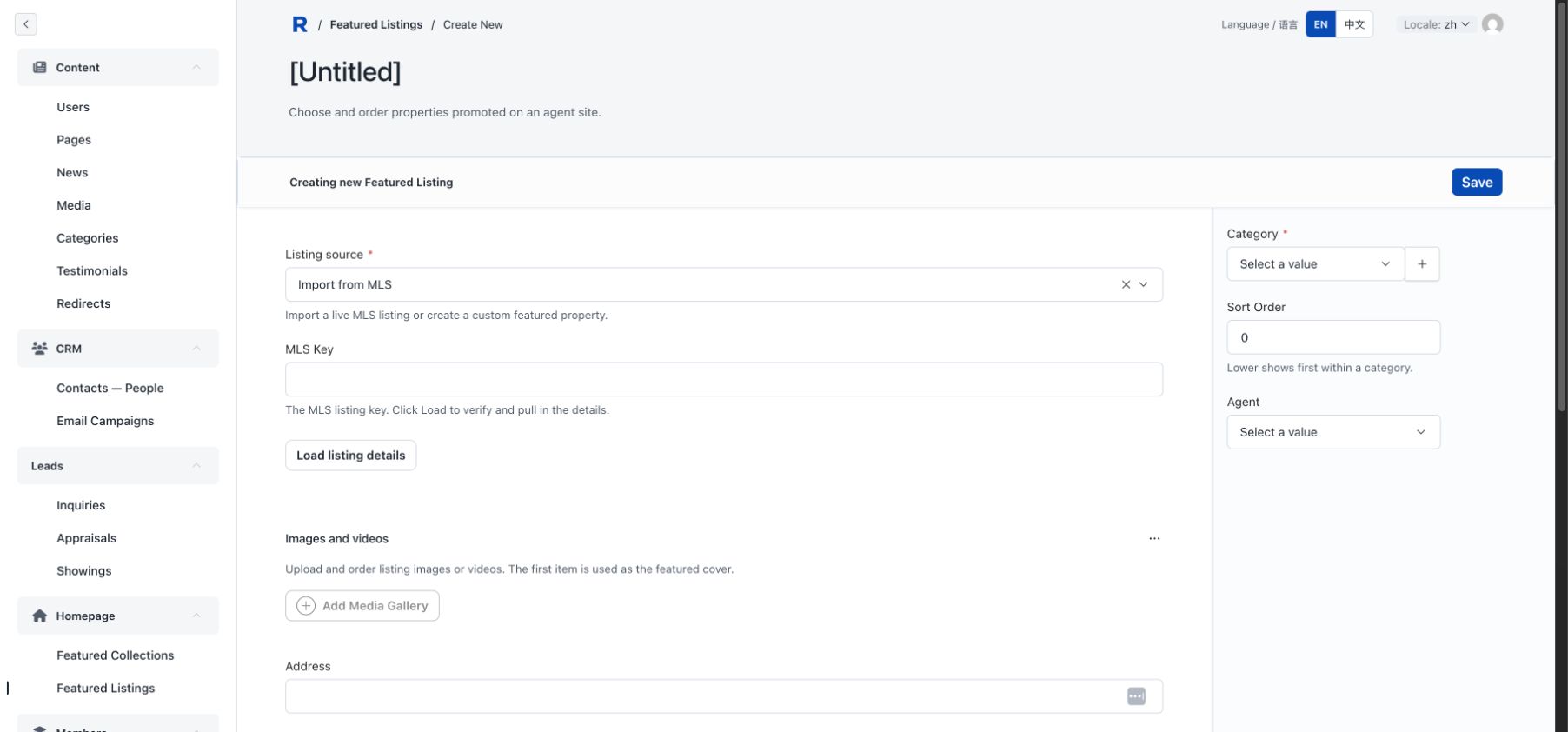 Choose MLS or CustomMLS key + LoadImages and videos
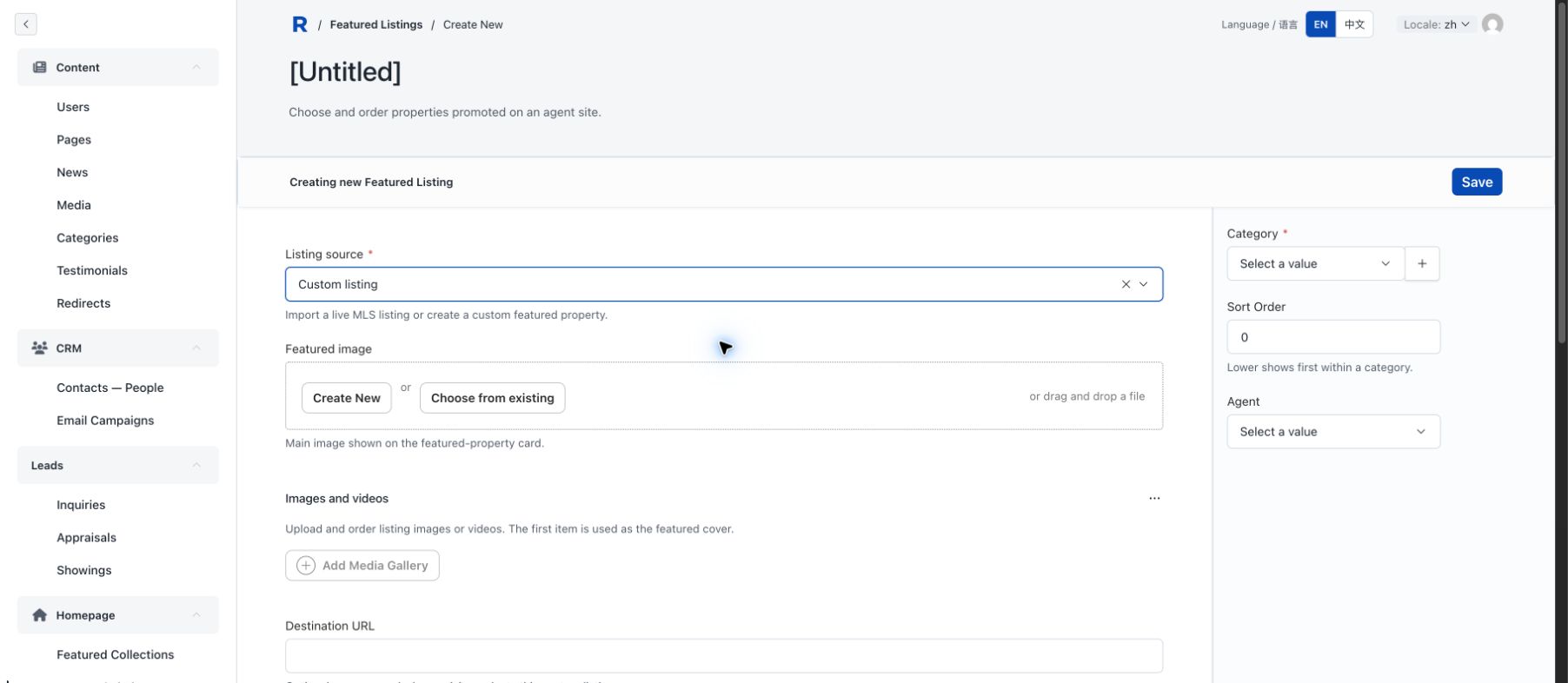 Custom listingFeatured imageGallery and link
Helpful notes
- A category is required. If you have none yet, create one in Homepage → Featured Collections before saving.
- If an MLS key cannot be loaded, check that the listing exists in the database and that the key matches exactly.