
Review and approve client testimonials
Follow the notification email to review a visitor’s rating and message before it appears on your site.
Step-by-step instructions
- 01
Open the review email
When a visitor submits a review, check the notification sent to your agent contact email (or your company contact email). It includes the reviewer’s name, headline, rating, message and a Review and approve this testimonial link.
- 02
Open the approval link and sign in
Click Review and approve this testimonial in the email. If you see the login page, sign in with the Opei account that manages this agent’s site. Then open the email link again if you are not returned to the review. You should arrive at that review’s editor; alternatively open Content → Testimonials and select the pending review with the matching name and headline.
- 03
Read the review before publishing
In the editor, check Client name, Headline, Message and the 1–5 star Rating. Confirm the review belongs to your site and that you are comfortable displaying its content publicly. The same approved text appears on both the English and Chinese versions of your site.
- 04
Set Status to Approved and save
Find Status in the right sidebar. Change Pending review to Approved, then click the save button at the top of the editor. Wait for the save confirmation; changing the dropdown alone does not publish the review. If you do not want it displayed, choose Rejected and save instead.
- 05
Check the public page
Open your website’s Testimonials page in English and Chinese. The approved review may take a few minutes to appear because public pages are cached.
Screenshots and callouts
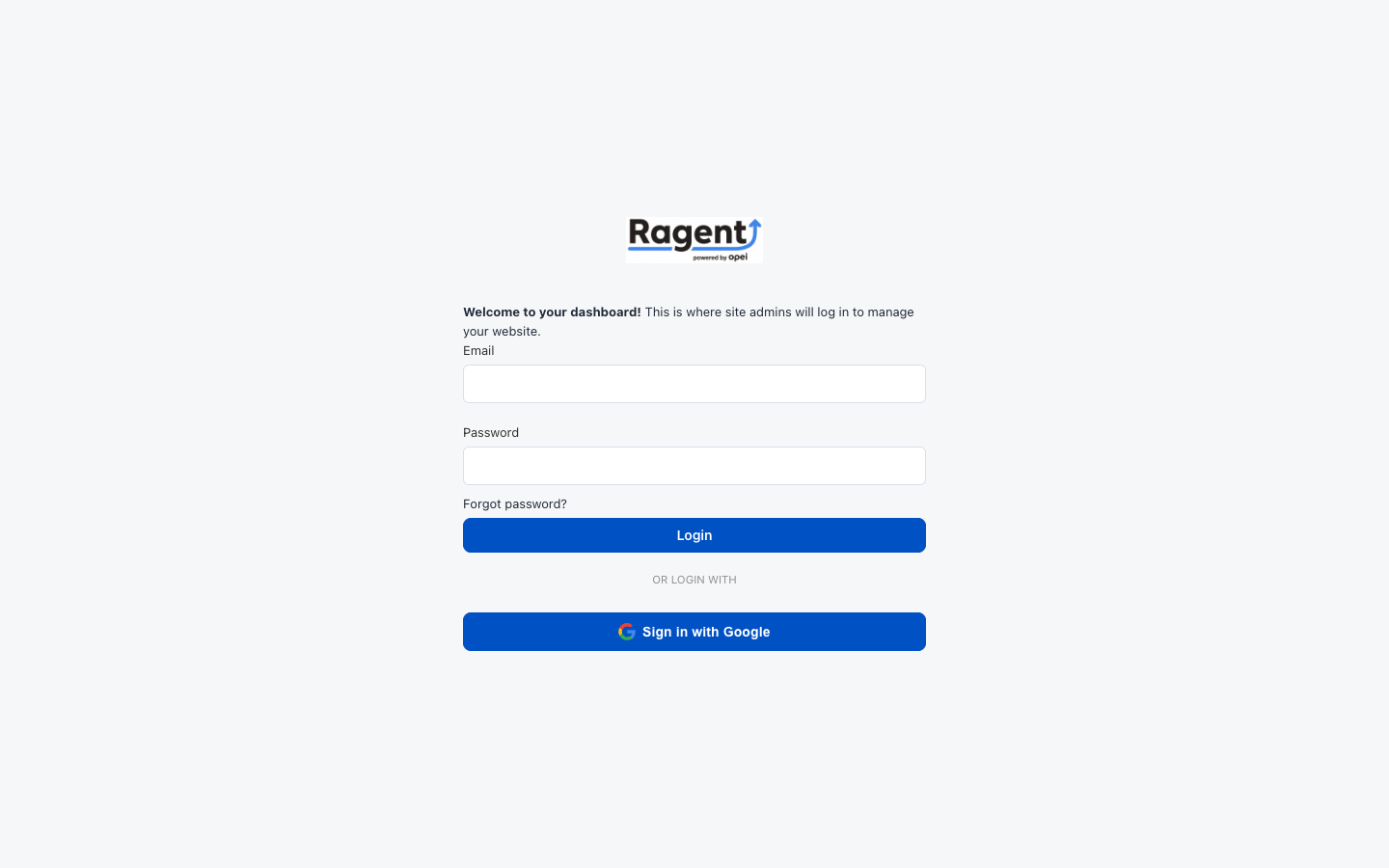 1 · Sign in
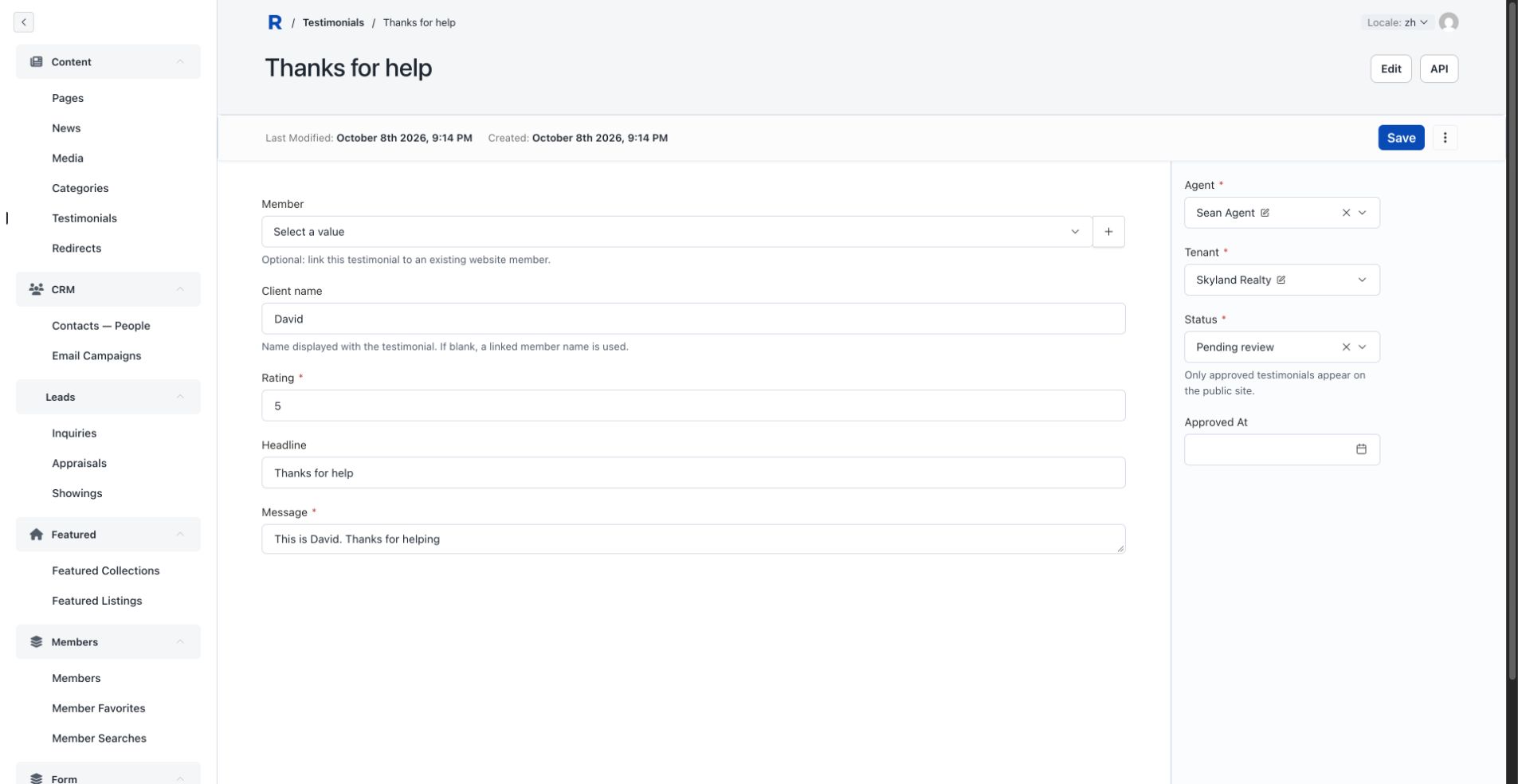 2 · Check the review3 · Choose Approved4 · Save
Helpful notes
- If the link says access denied or opens another account, sign out and sign in with the agent or company account that received the notification. Visitors do not need an account to submit a review.